
Table of Contents
- Introduction
- What Is SIPTV (Smart IPTV)?
- How SIPTV Works
- Key Features of SIPTV
- Benefits of Using SIPTV
- SIPTV Channels & Content
- Device Compatibility
- How to Install and Set Up SIPTV
- How to Upload an M3U Playlist to SIPTV
- Pricing & Activation
- Pros and Cons
- Is SIPTV Legal and Safe?
- Comparison with Other IPTV Apps
- Tips to Improve Streaming Quality
- Common Issues and Fixes
- FAQs
- Conclusion
Introduction
Imagine turning your regular Samsung or LG Smart TV into a powerhouse of entertainment — thousands of live channels, sports events, movies, and series from around the world, all streaming directly to your screen without a satellite dish or cable box in sight.
That’s exactly what SIPTV makes possible.
If you’ve been searching for a clean, reliable, and straightforward way to enjoy IPTV streaming on your Smart TV, SIPTV — short for Smart IPTV — is one of the most respected and widely used IPTV apps available today. It’s lightweight, easy to configure, and works seamlessly with virtually any IPTV playlist or M3U IPTV file your subscription provider gives you.
But like any technology, getting the best out of SIPTV requires knowing how to set it up correctly, what to expect, and how to troubleshoot when things don’t go as planned.
This guide covers everything — from what SIPTV actually is, to step-by-step SIPTV setup instructions, M3U playlist uploads, pricing, and expert tips for flawless streaming. Whether you’re a complete beginner or an experienced cord-cutter, this is the only guide you’ll need.
Let’s get started.
What Is SIPTV (Smart IPTV)?
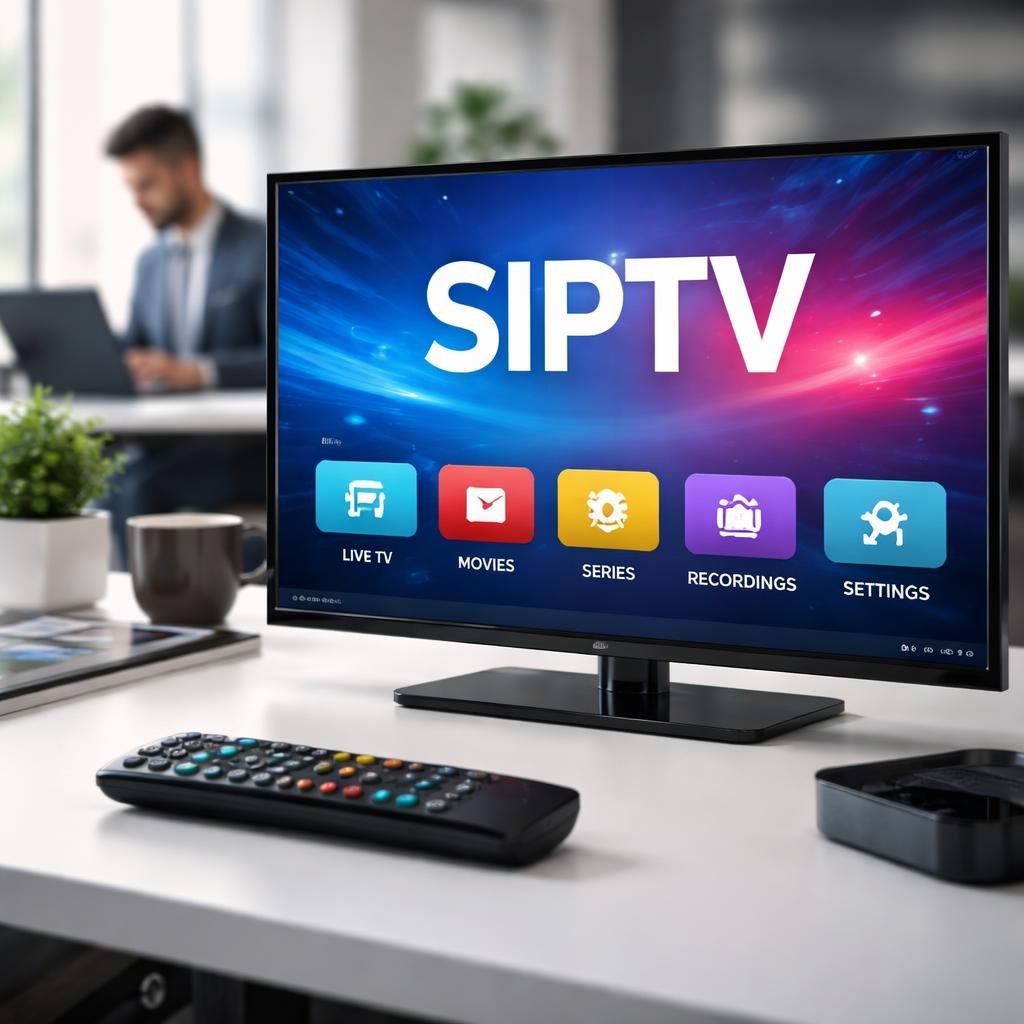
SIPTV, commonly referred to as Smart IPTV, is a dedicated IPTV app designed specifically for Smart TVs — particularly Samsung and LG models. It acts as a media player that accepts external IPTV playlists (in M3U or Xtream Codes format) and turns your Smart TV into a fully functional IPTV receiver.
Unlike all-in-one IPTV services that bundle both the app and the content together, SIPTV is a player-only application. This means it doesn’t provide channels or content by itself. Instead, you bring your own IPTV subscription and playlist, and SIPTV handles the playback.
Think of it this way: SIPTV is the engine, and your IPTV subscription is the fuel. Together, they give you an extraordinary television experience.
Why Is SIPTV So Popular?
The Smart IPTV app has built a loyal user base for several key reasons:
- It’s one of the few IPTV apps officially available on Samsung and LG Smart TV app stores
- Its interface is clean and intuitive — no clutter, no learning curve
- It supports both M3U playlists and Xtream Codes API connections
- It works with virtually every IPTV service provider on the market
- The one-time activation fee makes it far more economical than subscription-based players
You can also read: What Is IPTV and How Does It Work? A Complete Beginner’s Guide
How SIPTV Works
Understanding the mechanics behind SIPTV helps you troubleshoot problems and get the best possible streaming experience. Here’s how the whole system fits together:
Step 1: You Source an IPTV Subscription
Before SIPTV can do anything, you need an IPTV subscription from a provider. Your provider will give you either:
- An M3U URL — a web address pointing to your channel playlist
- Xtream Codes credentials — a server URL, username, and password
Step 2: You Upload the Playlist to SIPTV
Using the SIPTV web portal (siptv.app) or directly within the app, you link your M3U playlist or enter your Xtream Codes details. SIPTV fetches the channel list and organizes it for playback.
Step 3: SIPTV Streams the Content
When you select a channel, SIPTV sends a request to your IPTV provider’s server. The server responds by streaming the video data over your internet connection directly to your Smart TV screen.
Step 4: You Watch — Simple as That
The video is decoded and displayed in real time. The quality depends on:
- Your internet connection speed (10+ Mbps for HD, 25+ Mbps for 4K)
- The quality of your IPTV service provider’s servers
- The stream quality setting in your playlist
The beauty of SIPTV is that this entire process happens silently in the background — from your perspective, you’re just watching TV.
Key Features of SIPTV
What makes the Smart IPTV app stand out among its competitors? Here are the features that matter most to everyday users:
M3U Playlist Support
SIPTV fully supports M3U IPTV playlists. You can load them via URL (so they auto-update) or upload them as local files. This gives you maximum flexibility regardless of which IPTV provider you use.
Xtream Codes API Support
Beyond M3U, SIPTV supports Xtream Codes API connections — the industry-standard login method used by most professional IPTV service providers. This allows for direct access to live channels, VOD libraries, and series all in one place.
EPG (Electronic Program Guide)
SIPTV supports external EPG sources in XMLTV format. This means you can have a full TV guide showing current and upcoming programs — just like a traditional cable TV experience.
Multi-Playlist Support
You can load and switch between multiple IPTV playlists within the same app. Perfect for users who have more than one IPTV subscription or want to keep different content libraries separate.
Subtitles Support
SIPTV supports external subtitle files, which is a bonus for international content viewers watching in a non-native language.
Parental Controls
The app includes basic parental control features, allowing you to restrict access to specific channels or content categories — useful for households with children.
Last Channel Memory
SIPTV remembers the last channel you were watching and resumes from there when you relaunch the app. A small feature, but one that regular users genuinely appreciate.
Web-Based Management Interface
One of SIPTV‘s most unique features is its web portal at siptv.app. You can manage your playlists, EPG sources, and settings from any browser — no need to fumble with your TV remote to enter long URLs.
Benefits of Using SIPTV
Beyond the feature list, here’s why real users choose the SIPTV app as their go-to IPTV player:
- Works on Samsung & LG Smart TVs natively — No sideloading, no technical workarounds. Install it straight from your TV’s app store.
- One-time payment — Unlike many IPTV players that charge monthly, SIPTV charges a small one-time activation fee per device. Pay once, use forever.
- Provider-agnostic — Works with any IPTV subscription provider. Switch providers without changing your app.
- Minimal resource usage — The app is lightweight and doesn’t slow down your Smart TV’s performance.
- Regular updates — The development team consistently pushes updates to maintain compatibility with new TV firmware versions.
- Global community support — With millions of users worldwide, finding answers to common SIPTV questions is easy thanks to active forums and communities.
- No account registration required — Your TV’s MAC address serves as your device identifier. No email, no personal data needed.
SIPTV Channels & Content
It’s important to reiterate: SIPTV itself does not provide any channels or content. The channels you access depend entirely on the IPTV subscription you pair it with.
That said, here’s the kind of content you can typically access through SIPTV when combined with a quality IPTV service:
Live TV Channels
A typical IPTV playlist loaded into SIPTV might include:
- Major broadcast networks (ABC, NBC, CBS, BBC, ITV, France 2, RAI…)
- Premium cable channels (HBO, Sky Sports, Canal+, beIN Sports…)
- News networks (CNN, Fox News, Al Jazeera, Euronews…)
- Lifestyle, documentary, and kids’ channels
Sports Content
Sports fans are among the most enthusiastic SIPTV users, and for good reason:
- Football/Soccer: Premier League, Champions League, La Liga, Bundesliga, Serie A, Ligue 1
- American Sports: NFL, NBA, MLB, NHL
- Combat Sports: UFC, Bellator, boxing PPV events
- Motorsport: Formula 1, MotoGP, NASCAR
- Tennis, Golf, Rugby, Cricket, and much more
Movies & Series On Demand
If your IPTV subscription includes a VOD library (most do), SIPTV can display and play:
- Recent theatrical releases
- Classic and cult films
- Full TV series (complete seasons)
- Documentaries and specials
International & Multilingual Content
One of IPTV’s greatest strengths is borderless content. Through SIPTV you can access channels in:
- Arabic, Turkish, French, Spanish, Portuguese, Hindi, Persian, Polish, Romanian, and dozens more languages
- Country-specific packages ideal for expats
You can also read: Best IPTV Subscription Providers Compatible with SIPTV in 2026
Device Compatibility
SIPTV was built specifically for Smart TVs, but its compatibility has expanded over the years. Here’s a full breakdown:
| Device | Compatible? | How to Install |
|---|---|---|
| Samsung Smart TV (Tizen OS) | ✅ Yes | Samsung App Store |
| LG Smart TV (webOS) | ✅ Yes | LG Content Store |
| Android TV (Sony, Philips, etc.) | ⚠️ Partial | Use alternative app |
| Amazon Fire TV / Fire Stick | ❌ No | Use IPTV Smarters instead |
| Roku | ❌ No | No native support |
| iOS (iPhone / iPad) | ❌ No | Use GSE Smart IPTV |
| Android Smartphone / Tablet | ❌ No | Use TiviMate or Smarters |
| PC / Mac (via browser) | ⚠️ Management only | siptv.app web portal |
Important note: SIPTV is primarily designed for Samsung Smart TVs (2012 and newer) and LG Smart TVs (2012 and newer). If you have a different type of device, you’ll need to use an alternative IPTV app — which we cover in the comparison section.
Supported Samsung TV Models
SIPTV supports Samsung Smart TVs from 2012 onwards, covering:
- F, H, J, K, M, N, Q, and newer series
- Both HD and 4K UHD models
Supported LG TV Models
For LG, SIPTV supports webOS-based models from 2014 onwards, including:
- webOS 1.0 through webOS 6.0 and later
- OLED, NanoCell, and standard LED models
How to Install and Set Up SIPTV
Installing the Smart IPTV app on your Samsung or LG TV is a straightforward process. Here’s how to do it on each platform:
Installing SIPTV on Samsung Smart TV
Step 1: Press the Home button on your Samsung remote.
Step 2: Navigate to Apps and open the Samsung App Store.
Step 3: Use the search function and type “Smart IPTV” or “SIPTV”.
Step 4: Select the app from the results and click Install.
Step 5: Once installed, open the app. You’ll see your TV’s MAC address displayed on screen — note this down, as you’ll need it for activation.
Step 6: Proceed to load your IPTV playlist (see next section).
Installing SIPTV on LG Smart TV
Step 1: Press the Home button on your LG remote.
Step 2: Open the LG Content Store.
Step 3: Search for “Smart IPTV” in the search bar.
Step 4: Select the app and click Install.
Step 5: Launch the app — your MAC address will be displayed on the welcome screen.
Step 6: Load your M3U playlist or Xtream Codes credentials to start watching.
How to Upload an M3U Playlist to SIPTV
This is where the magic happens. Connecting your IPTV playlist to SIPTV is simple, and there are two main methods:
Method 1: Via the SIPTV Web Portal (Recommended)
This is the easiest and most reliable method.
Step 1: On any browser (phone, tablet, or computer), go to siptv.app.
Step 2: Click on “My list” in the top menu.
Step 3: Enter your TV’s MAC address in the field provided.
Step 4: Choose your upload method:
- Paste URL — Enter your M3U URL directly (best option, as it auto-refreshes)
- Upload file — Upload a local .m3u file from your device
Step 5: Optionally, add an EPG URL (in XMLTV format) for the program guide.
Step 6: Click “Send to TV” and then restart the SIPTV app on your Smart TV.
Step 7: Your channels will now appear in the app, organized by groups as defined in your playlist.
Method 2: Via Xtream Codes API (Within the App)
If your IPTV service provider uses Xtream Codes:
Step 1: Open SIPTV on your Smart TV.
Step 2: Navigate to Settings > Playlists > Add New.
Step 3: Select “Xtream Codes API”.
Step 4: Enter the following details provided by your IPTV provider:
- Server URL (e.g., http://yourprovider.com:port)
- Username
- Password
Step 5: Save and reload. Your live channels, VOD, and series will all be available directly within SIPTV.
Tips for Managing Your Playlist
- Use a URL-based M3U rather than a local file — it updates automatically when your provider refreshes the playlist
- If your provider offers multiple server URLs, try each one to find the fastest for your location
- Keep your EPG URL updated to ensure your program guide stays accurate
- If you have multiple subscriptions, use the multi-playlist feature to keep them organized
Pricing & Activation
One of the most attractive aspects of SIPTV is its pricing model — a refreshing alternative to the subscription fatigue of modern software.
One-Time Activation Fee
SIPTV charges a single one-time fee per device, rather than a recurring monthly or annual subscription. As of 2026, the activation cost is approximately:
- $5.49 USD per device (price may vary slightly by region)
Once activated, you can use the Smart IPTV app on that device forever — no renewal, no hidden fees.
What’s Included in Activation?
- Lifetime access to the SIPTV app on that specific TV
- All future app updates at no additional cost
- Unlimited playlist changes and EPG updates
- Access to all app features including multi-playlist and Xtream Codes support
Free Trial Period
Before committing, SIPTV offers a 7-day free trial on first install. During this period, you can test all features fully — including loading your M3U IPTV playlist and watching live channels — without paying anything.
This trial is per device and cannot be extended, so make sure to thoroughly test the app during those 7 days.
How to Activate SIPTV
Step 1: Note your TV’s MAC address from the SIPTV app welcome screen.
Step 2: Visit siptv.app and click on “Activation”.
Step 3: Enter your MAC address and complete the payment via PayPal or credit card.
Step 4: Restart the SIPTV app on your TV. It will now be permanently activated.
💡 Pro Tip: The activation is tied to your TV’s MAC address, not your TV model or serial number. If you factory reset your TV, your MAC address may change — contact SIPTV support in that case.
Pros and Cons
Here’s an honest, balanced assessment of the SIPTV app:
✅ Pros
- Officially available on Samsung and LG Smart TV stores — no sideloading required
- One-time payment — excellent long-term value
- 7-day free trial — no risk before you commit
- Supports M3U and Xtream Codes — works with virtually all IPTV providers
- Web-based management via siptv.app — easy to configure without your TV remote
- EPG support for a full program guide experience
- Multi-playlist capability for power users
- Lightweight — doesn’t strain your Smart TV’s hardware
- Regular updates maintaining compatibility with new TV firmware
❌ Cons
- Samsung and LG only — not available for Android TV, Fire TV, or other platforms
- No built-in content — you must bring your own IPTV subscription
- UI is functional but dated — not the most visually polished interface compared to TiviMate
- No catch-up TV support natively (depends on playlist)
- Limited customer support — primarily community-driven help
- MAC address-tied activation — factory resets can complicate things
Is SIPTV Legal and Safe?
The SIPTV app itself is completely legal. It’s a media player — nothing more. It’s available on official app stores and doesn’t host or distribute any content on its own.
The legal question becomes more nuanced when we look at what you stream through it.
The Legal Reality of IPTV
- Licensed IPTV services (like your cable provider’s app, YouTube TV, Hulu Live, or Molotov in France) are fully legal and can be used with confidence.
- Unlicensed third-party IPTV services — which make up a large portion of the IPTV subscription market — operate in a legal gray area. They stream content without the proper broadcasting licenses, which can vary in legality by country.
Using SIPTV with a fully licensed IPTV provider is 100% legal. Using it with unlicensed streams is where legal risk enters the picture.
Staying Safe: Best Practices
Regardless of which IPTV service you use, here are the best practices every SIPTV user should follow:
- Use a reputable VPN. A trusted VPN (such as NordVPN, ExpressVPN, or Surfshark) encrypts your internet traffic, protecting your privacy and preventing your ISP from throttling IPTV streams.
- Never enter sensitive banking details on unverified IPTV reseller websites. Use PayPal, prepaid cards, or cryptocurrency where possible.
- Verify your IPTV provider’s legitimacy before subscribing. Look for established providers with verifiable reviews on trusted platforms.
- Keep your Smart TV firmware updated. Security patches protect your device from potential vulnerabilities.
- Be wary of suspiciously cheap subscriptions. Extremely low-priced IPTV services often deliver poor quality or disappear overnight with your money.
⚠️ Disclaimer: This article is for informational purposes only. We do not endorse or encourage the use of unlicensed IPTV services. Always comply with the copyright and broadcasting laws of your country.
Comparison with Other IPTV Apps
How does SIPTV compare to the other popular IPTV apps available in 2026?
| Feature | SIPTV | TiviMate | IPTV Smarters Pro | GSE Smart IPTV |
|---|---|---|---|---|
| Primary Platform | Samsung / LG TV | Android TV | Android / iOS / PC | Android / iOS |
| M3U Support | ✅ Yes | ✅ Yes | ✅ Yes | ✅ Yes |
| Xtream Codes | ✅ Yes | ✅ Yes | ✅ Yes | ✅ Yes |
| EPG Support | ✅ Yes | ✅ Yes | ✅ Yes | ✅ Yes |
| Pricing Model | One-time ~$5.49 | Free + Premium sub | Free + In-app | Free + Premium |
| UI Quality | ⭐⭐⭐ | ⭐⭐⭐⭐⭐ | ⭐⭐⭐⭐ | ⭐⭐⭐ |
| Catch-Up TV | ⚠️ Limited | ✅ Yes | ✅ Yes | ✅ Yes |
| Multi-Playlist | ✅ Yes | ✅ Yes | ✅ Yes | ✅ Yes |
| Available on Smart TV (Samsung/LG) | ✅ Yes | ❌ No | ❌ No | ❌ No |
| Free Trial | ✅ 7 days | ✅ Yes | ✅ Yes | ✅ Yes |
When to Choose SIPTV
- You have a Samsung or LG Smart TV and want native app installation
- You prefer a one-time payment over ongoing subscription costs
- You want a simple, reliable player without feature bloat
When to Choose TiviMate
- You use an Android TV box or Fire TV device
- You want the most polished UI and advanced features like catch-up and multi-view
- You’re a power user who wants granular control over every setting
When to Choose IPTV Smarters Pro
- You need cross-platform access (Android, iOS, Windows, Mac)
- You want a beginner-friendly interface with visual channel previews
- You frequently switch between devices
You can also read: TiviMate vs IPTV Smarters Pro: Which IPTV App Is Better in 2026?
Tips to Improve Streaming Quality
Getting the best performance out of SIPTV is about optimizing your entire setup — not just the app itself. Here are the most impactful tips:
1. Use a Wired Ethernet Connection
This is the single most effective improvement you can make. Connect your Smart TV directly to your router with an Ethernet cable. It eliminates Wi-Fi interference and dramatically reduces buffering.
2. Upgrade to a Faster Internet Plan if Needed
Check your actual speeds at fast.com or speedtest.net. For comfortable IPTV streaming:
- HD (1080p): 10–15 Mbps stable
- 4K: 25 Mbps or more stable
If multiple people share your connection, factor in their usage too.
3. Choose a Server Close to Your Location
If your IPTV service offers multiple server options, select the one geographically closest to you. Lower latency means faster stream startup and fewer interruptions.
4. Keep Your M3U Playlist URL Fresh
Use a URL-based playlist rather than a static uploaded file. URL-based playlists auto-update when your provider refreshes their server list, ensuring you always have the most stable stream links.
5. Use a Quality VPN Strategically
A good VPN can help if your ISP throttles streaming traffic. However, using a slow VPN server can make things worse. Connect to a fast VPN server close to your location, or use the VPN’s “smart server” feature for best speeds.
6. Adjust Your TV’s Energy Saving Settings
Many Samsung and LG Smart TVs throttle network performance when energy-saving modes are active. Go to your TV’s power settings and disable aggressive energy-saving features while streaming.
7. Restart Your Router Weekly
A weekly router restart clears its memory, refreshes your IP address, and often resolves minor connectivity issues that accumulate over time. Do it before your next big game or movie night.
8. Clear the SIPTV App Cache
On Samsung TVs: Settings > Support > Device Care > Manage Storage — clear the SIPTV app’s cached data periodically to prevent slowdowns.
Common Issues and Fixes
Even with a solid setup, SIPTV users occasionally run into problems. Here are the most reported issues and their proven solutions:
❌ Issue 1: Playlist Not Loading or “Failed to Load”
Possible causes: Incorrect M3U URL, expired subscription, server-side issue.
Fixes:
- Double-check the M3U URL for typos (even a single wrong character breaks it)
- Confirm your IPTV subscription is still active
- Try accessing the M3U URL in a browser on your phone to verify it works
- Re-upload the playlist via siptv.app
- Contact your IPTV provider if the URL itself is broken
❌ Issue 2: Channels Buffering or Freezing
Possible causes: Slow internet connection, overloaded IPTV server, Wi-Fi instability.
Fixes:
- Switch from Wi-Fi to Ethernet
- Try a different stream quality (SD instead of HD)
- Test a different channel to isolate whether it’s one channel or all channels
- Try switching to an alternate server URL if your provider offers one
- Connect through a VPN to bypass potential ISP throttling
❌ Issue 3: EPG (Program Guide) Not Showing
Possible causes: Incorrect EPG URL, sync not completed.
Fixes:
- Verify the EPG URL is correct in the siptv.app portal
- Force an EPG refresh from within the SIPTV app settings
- Wait up to 30 minutes after a fresh EPG load for data to populate
- Check that your M3U playlist has EPG channel IDs that match your EPG source
❌ Issue 4: App Shows “Trial Expired” After Purchase
Possible causes: Activation payment not processed, wrong MAC address entered.
Fixes:
- Check your email for a payment confirmation from SIPTV
- Verify the MAC address you entered during payment matches your TV’s current MAC
- Contact SIPTV support at siptv.app with your transaction ID
❌ Issue 5: Channels Playing But No Sound
Possible causes: Audio format incompatibility, TV audio settings issue.
Fixes:
- Go to your TV’s sound settings and switch the audio output format from Dolby/DTS to PCM
- Check if the issue is specific to one channel (could be the stream itself)
- Restart the app and re-select the channel
❌ Issue 6: App Not Found in Samsung/LG Store
Possible causes: App may not be available in your region’s store.
Fixes:
- Try searching for both “Smart IPTV” and “SIPTV”
- Check if your TV’s region settings match your actual location
- Visit siptv.app for guidance on alternative installation methods for your specific TV model
FAQs
1. What exactly is SIPTV and what does it do?
SIPTV (Smart IPTV) is a dedicated media player application for Samsung and LG Smart TVs. It doesn’t provide channels itself — instead, it accepts an external IPTV playlist (M3U or Xtream Codes) from your chosen IPTV subscription provider and plays those channels directly on your Smart TV. It’s essentially the player; your IPTV service is the content.
2. Is SIPTV free to use?
SIPTV offers a 7-day free trial upon installation. After the trial period, a one-time activation fee of approximately $5.49 USD is required to continue using the app. This is a per-device fee — once paid, there are no further charges for that TV.
3. Can I use SIPTV on any Smart TV?
SIPTV is officially available for Samsung Smart TVs (2012 and newer, running Tizen OS) and LG Smart TVs (2014 and newer, running webOS). It is not natively available for Android TV, Fire TV, Roku, or mobile devices. For those platforms, alternatives like TiviMate or IPTV Smarters Pro are recommended.
4. How do I add my IPTV subscription to SIPTV?
The easiest way is through the siptv.app web portal. Open it in any browser, enter your TV’s MAC address (shown on the SIPTV welcome screen), and paste in your M3U playlist URL. Alternatively, you can enter Xtream Codes credentials directly within the app’s settings. Detailed steps are covered in the setup section above.
5. Does SIPTV support 4K Ultra HD streaming?
SIPTV supports whatever resolution your IPTV playlist and your TV can handle. If your IPTV provider offers 4K streams and your Samsung or LG TV supports 4K, then yes — you can stream in 4K through SIPTV. You’ll need a stable internet connection of at least 25 Mbps for smooth 4K playback.
6. What should I do if my M3U playlist stops working?
First, verify that your IPTV subscription is still active and hasn’t expired. Then, try accessing your M3U URL directly in a mobile browser to confirm it’s functional. If the URL works but SIPTV won’t load it, try re-uploading it through siptv.app. If the URL itself is broken, contact your IPTV service provider for a fresh link.
7. Can I use SIPTV with multiple IPTV subscriptions simultaneously?
Yes. SIPTV supports multiple playlists, meaning you can add more than one IPTV playlist and switch between them within the app. This is useful if you have subscriptions from different providers or want to keep personal and family content libraries separate.
8. Is my personal data safe when using SIPTV?
SIPTV identifies your device using its MAC address rather than personal login credentials. The app itself doesn’t require you to create an account or provide personal information beyond the MAC address for activation. However, always ensure you’re accessing siptv.app (the official site) and not a phishing clone when making payments or managing your playlists.
Conclusion
If you own a Samsung or LG Smart TV and want the most seamless, native IPTV streaming experience available, SIPTV is hard to beat. It strikes the perfect balance between simplicity and functionality — a clean interface, broad playlist compatibility, reliable performance, and a one-time price that makes it one of the best-value IPTV apps on the market in 2026.
Yes, it’s not the flashiest app. Yes, it’s limited to Samsung and LG ecosystems. And yes, you’ll need to bring your own IPTV subscription. But for the millions of Smart TV owners who want a no-nonsense solution for loading their M3U IPTV playlist and watching their favorite channels in HD, SIPTV delivers exactly what it promises — every single time.
The 7-day free trial means there’s genuinely zero risk in trying it. Load your playlist, test your channels, watch your sports. If it works for you (and it almost certainly will), activate it for less than the price of a coffee and enjoy it forever.
🚀 Ready to Get Started with SIPTV?
Here’s your quick-start action plan:
- ✅ Install SIPTV from your Samsung App Store or LG Content Store right now
- ✅ Note your TV’s MAC address from the SIPTV welcome screen
- ✅ Get your IPTV subscription from a reputable provider (request a free trial first)
- ✅ Upload your M3U playlist at siptv.app in under 2 minutes
- ✅ Activate your SIPTV app for a one-time fee after your 7-day trial
- ✅ Set up a VPN for secure, private, and throttle-free IPTV streaming
- ✅ Enjoy thousands of channels on your Smart TV — sports, movies, live TV and more
The prose evokes gentle observation. Ordinary moments are rendered extraordinary through careful attention, encouraging mindfulness and appreciation for subtle detail.
There’s a quiet insistence in your prose, a gentle pull toward reflection. It asks nothing overtly, yet encourages the mind to wander and consider with intent.